Create separate grading periods, so you can easily divide grades by date range without building additional courses in Pearson Connexus.
Pearson Connexus allows administrators to set up School years and Grading periods within them at the domain to help align grading practices across the courses within the domain.
- A School year can look different for different schools and districts, but, traditionally in the US, they begin in the fall and end in the spring and represent the curriculum a student gets during one grade-level of schooling. In Pearson Connexus, an administrator can define any date range they want to represent a School year.
- A Grading period in Pearson Connexus is a range of time within a defined School year for which students can be given an overall grade. Many districts divide their School years into four quarters, and students receive a grade for each of those quarters. In Pearson Connexus, each of those quarters would be defined as a Grading period.
As teachers create gradable activities in a course, they can assign them to a specific Grading period, so those grades will be included in that period.
Enable grading periods in your course
Grading periods can be set up in two ways:
- Recommended: System admins can set up domain-level grading periods that are associated with a specific school year. When you create a new course in that domain, it will automatically use these settings.
- You can set up course-level grading periods using the directions below. We recommend you only do this if your domain does not have Grading periods set up for you to use. If you are unsure, talk to your system administrator.
- Open the Editor tool.
- Select Course settings from Tools in the toolbar.
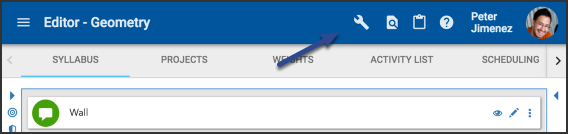
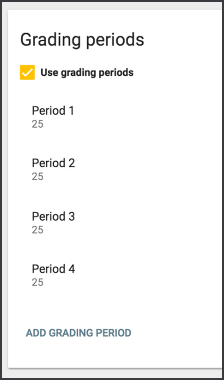
- In the Grading Periods card, check the Use Grading Periods box.
From here, you can:
- Give each grading period a name; it may be useful to include date ranges.
- Assign each grading period a grading weight. This number determines the relative impact each period has on the overall grade; if each period should have equal impact, assign the same number to each.
- Add grading periods.
- Remove grading periods by selecting the garbage can (delete) icon next to each.
- Inherit activity grading period from top-most folder.
- Use the up and down arrows to manage the period order.
- Select Save.
Assign activities to grading periods
Once you've enabled grading periods, use the activity editors to assign activities to them.
- Within the Syllabus, expand the folders and locate the desired activity.
- Select Edit (pencil) icon.
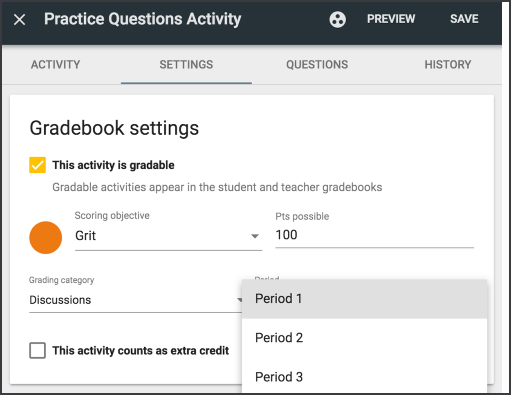
- In the Settings tab, locate the Gradebook and submission card. Check the box next to This activity is gradable and then select the desired period from the Period drop-down menu.
- Select Save.
Additional Articles
Tips
- Only gradable Activities can be assigned to grading periods.
Video